PhotoBoost - AI Photo Enhancer
Tap AIPhotography
4.64.57K Reviews
- Version
- 2.0.0
- Installs
- 10.00M
- Age Rating
- Everyone
Screenshots
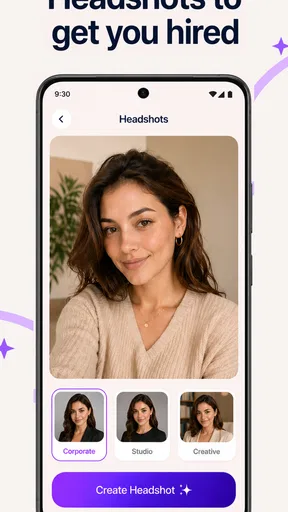
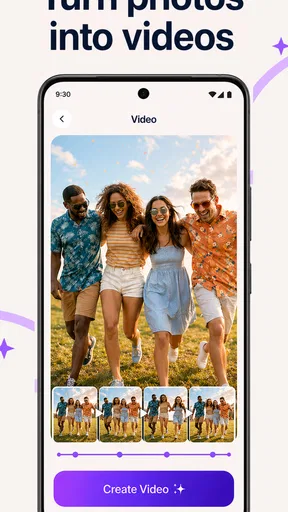
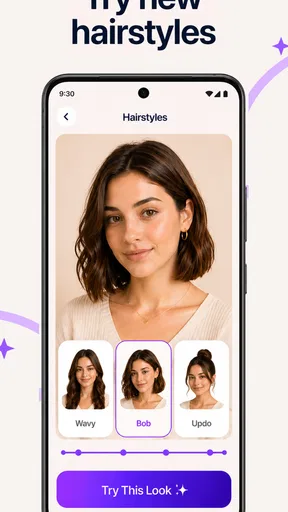
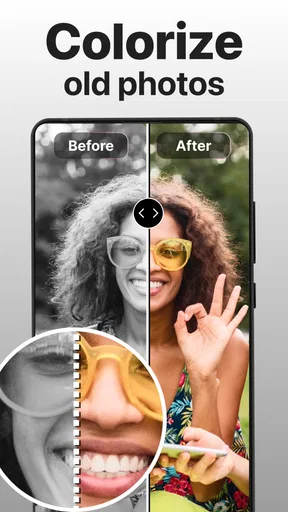
Our Review of PhotoBoost - AI Photo Enhancer
 Analysis by Appyee
If you're anything like me, you've got a phone full of photos. From epic sunsets to that latte art from last Tuesday, every snapshot holds a memory. But let's face it, not every pic is Instagram-ready. Enter PhotoBoost - AI Photo Enhancer, the app that promises to elevate your photo game with just a few taps. I took it for a spin and here's the lowdown.
When a Photo Needs a Second Chance
I reach for an AI photo editor when the moment matters more than the image quality: a family picture taken indoors, a quick snapshot with soft focus, or an old image I want to make easier to view and share. PhotoBoost is aimed at that practical gap between keeping a photo as it is and opening a more involved editing program. Its focus is improving and restoring images, rather than asking me to build an elaborate edit from scratch.
A useful way to judge any enhancement is to ask what the original photo gets right before asking the app to fix what it gets wrong. If the framing and expression are good but the image looks dim or a little soft, enhancement can make it more presentable. If the subject is cut off, an important moment happened outside the frame, or the lighting has erased detail completely, an editor cannot reliably recreate what was never captured. I treat the result as a better version of the existing photograph, not a replacement for taking care with the camera.
That distinction matters especially with portraits. A slightly unclear image of a friend may be worth trying because the memory is the point, but I still compare the result with the original before sharing it. AI processing can make a face look cleaner while also changing fine details. For a private keepsake, that trade-off may be acceptable; for an image where faithful appearance matters, I would keep the untouched file and avoid presenting an enhancement as an exact record.
First Impressions
The moment you launch PhotoBoost, you’re greeted with a clean and intuitive interface. It's like the app knows you don't want to waste time figuring out where everything is. The home screen offers a straightforward menu with options like "Enhance," "Filter," and "Edit." The design is minimalistic, which makes it easy for anyone to jump right in and start editing.
A Simple Route from Original to Shareable
My preferred workflow is to start with one photo, make one enhancement, and inspect the whole image before moving on to filters or manual adjustments. That order makes it easier to tell whether the AI improved the picture or whether a later effect merely made it look more dramatic. I pay particular attention to faces, hair, text, and repeated patterns such as brickwork: these areas can reveal when an image has become overly smooth or artificial.
For a realistic everyday example, imagine finding a dim group photo after dinner that you want to send to the people who were there. I would first select the original, apply the enhancement, and compare the result at the same viewing size. If the faces are clearer without losing their natural look, I would keep it. If the image becomes harsh, I would undo the change or use the manual controls more lightly rather than stacking edits in the hope that more processing will solve the problem.
That one-change-at-a-time habit is more than caution; it helps me learn what the tool is doing to a particular image. A low-light photo and a faded old picture have different problems, so the strongest-looking result is not automatically the most believable one. I also keep the original available until I have checked the finished version outside the editing screen. This gives me a practical fallback if the export looks different from the preview or if I later decide the untouched image suits the memory better.
Enhancement with AI
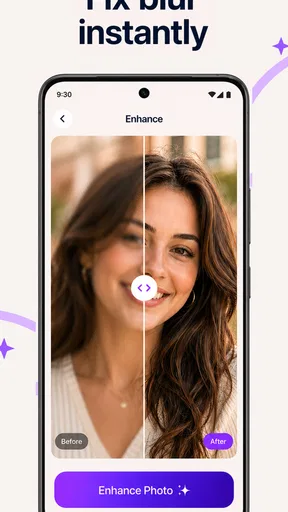
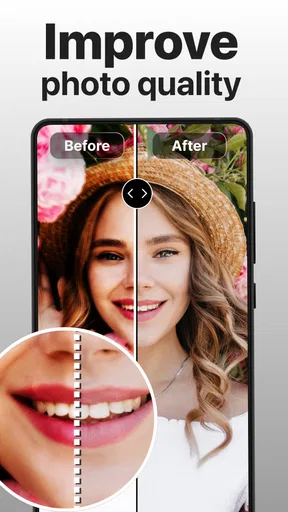
The real magic of PhotoBoost lies in its AI-driven enhancement feature. I tested it with a few photos that were a bit underwhelming in terms of lighting and sharpness. With a single tap, the app analyzed and adjusted each image. The results? Pretty impressive. Colors popped, details stood out, and even the lighting seemed more balanced. It's like having a professional photographer touch up your photos in seconds.
Where AI Helps, and Where It Can Overreach
The best use I have found for this kind of one-tap correction is a photo that is already worth keeping but needs a modest lift. It can be a helpful first pass for a snapshot that looks flat on a phone screen, especially when I want a quick improvement rather than a detailed edit. I would not expect it to recover every feature from a badly blurred shot, though. Sharpening can make edges look stronger, but it cannot guarantee that hidden detail becomes accurate.
My main quality check is to zoom in briefly, then zoom back out. At close range I look for strange texture or outlines around high-contrast edges; at normal size I ask whether the picture still feels like the scene I remember. If the enhancement looks convincing only when viewed small, that may be enough for a casual social post, but I would be more careful before printing or using it as an archival copy. Keeping both versions is the sensible choice when the image has sentimental value.
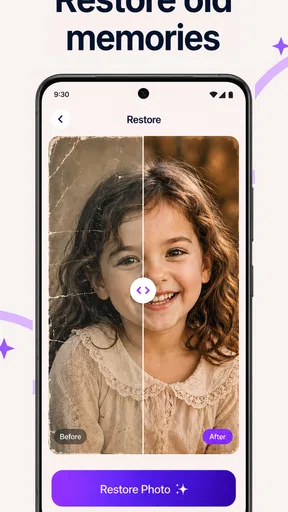
For restoration, I would also set expectations by the source. An old photo with visible fading may benefit from a cleaner presentation, while scratches, missing corners, and severe damage call for more specialized restoration work. An enhancer is not necessarily a full restoration studio. I would try it for a quick improvement, then decide whether the remaining damage is something I can accept or whether a dedicated tool or professional service is more appropriate.
Filters and Editing Tools
For those who love to play around with filters, PhotoBoost doesn’t disappoint. There’s a wide variety to choose from, ranging from vintage vibes to modern aesthetics. I particularly enjoyed the "Retro" filter which gave my photos a nostalgic feel. Beyond filters, the app offers a robust set of editing tools. You can tweak brightness, contrast, saturation, and more. It's great for those who want to add a personal touch to their images.
Choosing an Edit That Still Looks Like Your Photo
I get the most useful result by treating a filter as the final seasoning rather than the starting point. First I decide whether the image needs a cleaner base; then I add a look only if it supports the mood I want. A warm filter might suit a casual meal or a holiday snapshot, while a strong vintage effect can distract from a portrait or make skin tones feel less natural. When the photo is already colorful, a restrained adjustment often keeps it more believable.
The sliders also make a practical difference when an automatic result feels too strong. I would change one control at a time and stop as soon as the subject reads clearly. Pushing saturation to rescue a dull scene can make clothing and signs look unnaturally bright; raising contrast can bury detail in shadows. The point is not to use every available control but to correct the specific issue that is bothering me.
Compared with a standard phone gallery editor, the appeal here is the AI-centered starting point and the option to continue with filters and adjustments in the same editing session. A basic gallery tool can be quicker for a tiny crop or rotation, and a more advanced desktop editor is better when I need precise masks, layered changes, or careful color work. PhotoBoost makes more sense when the task is an approachable improvement to a personal image, not a replacement for a full creative suite.
User Experience
Using the app is a breeze. The AI does most of the heavy lifting, but you're still in control. If you don't like the way an enhancement turned out, you can easily undo it or adjust sliders for a custom look. I found that the app processed edits quickly, even on my older device, which is a huge plus when you’re editing multiple photos at once.
Everyday Use and Practical Trade-Offs
For a batch of pictures from a day out, I would resist applying the same treatment blindly to every frame. One image may be backlit, another may already be sharp, and a third may have motion blur. Reviewing them individually takes longer, but it avoids making a good photo look processed just because its neighbor needed help. I would also finish the most important image first before committing time to a whole set; that quickly shows whether the app’s style suits the occasion.
PhotoBoost is a photography app from Yoob AI, and it is free to install, with in-app purchases listed from $1.99 to $199.90 per item. That makes it easy to try the basic experience, but I would check what an optional purchase covers before paying, especially if I only need to improve a single picture. The app is rated for Everyone, so it is broadly suitable for general audiences, though anyone managing a child’s device should still make purchase decisions themselves.
It has a 4.6 average from around 602,000 ratings and more than 5 million installs. Those figures suggest that it has reached a large audience, but they do not tell me whether its processing style will suit my photos. I would use a personal image as a test before relying on it for a collection, and I would judge the actual output rather than assuming popularity guarantees a particular result.
Sharing and Saving
Once your masterpiece is ready, sharing it is seamless. The app integrates well with social media platforms, allowing you to post directly to Instagram, Facebook, or wherever your digital heart desires. And if you’re someone who likes to keep things offline, saving enhanced photos to your device is straightforward too.
PhotoBoost - AI Photo Enhancer also provides options for saving in different resolutions, which is handy if you're concerned about storage space or want to maintain the highest quality possible.
Checking the Handoff Before You Share
Saving is the handoff point between editing and everything I do next, so I would inspect the exported image rather than trusting the editor preview alone. I check that the chosen resolution fits the destination: a smaller file can be convenient for sending, while a higher-resolution copy is more appropriate when I want to retain detail. Keeping the original alongside the edited version also lets me share the improved copy without losing the starting point.
For a group chat, I might favor a file that is easy to send and view on phones. For a personal archive, I would choose the higher-quality option and avoid repeatedly exporting and re-editing the same copy, since that creates unnecessary versions and makes it harder to know which is final. If I plan to post publicly, I review the image once more at ordinary screen size; tiny edits that looked subtle in the tool can feel much stronger in a social feed.
When Another Tool Is the Better Choice
This is not the app I would pick for every photography job. If I need exact color matching, selective edits to one part of a frame, detailed retouching, or a carefully prepared print, a more capable editor gives me greater control. If the photo is already good and I only need to crop it, the built-in gallery editor is likely the quicker stop. PhotoBoost is most appealing when I want an uncomplicated attempt at improving a photo and can accept that AI results need a human check.
I would also skip it when authenticity is more important than polish, such as documenting the exact condition of an object or preserving a photograph for a record. In those cases, I keep the original untouched and make any enhanced version clearly separate. That is not a flaw unique to this app; it is a general caution with image processing. The convenience of an automatic correction is useful only when it does not change the purpose of the picture.
The app is currently at version 1.1.67 and supports Android 9 or later. If you are deciding whether it will fit your phone, that minimum system requirement is worth checking before you plan a workflow around it. I would also leave room for a little trial and error: an easy interface reduces the learning curve, but choosing a natural-looking result still depends on the image and on how much editing you personally like.
Final Thoughts
In the end, PhotoBoost - AI Photo Enhancer is a powerful tool for anyone looking to up their photo-editing game without diving into complex software. Its AI capabilities make enhancements quick and effective, while its user-friendly interface ensures that even the most tech-challenged among us can produce stunning images. Whether you’re a seasoned photographer or just someone who loves capturing moments, this app is worth a try.
So, next time you snap a pic that doesn’t quite capture the moment, don’t fret. Give PhotoBoost a whirl and watch your photos transform from ordinary to extraordinary.
Privacy and Permissions
See what permissions an app requests and how it handles your data.
- Photos/Media/Files
- read the contents of your USB storage, modify or delete the contents of your USB storage
- Storage
- read the contents of your USB storage, modify or delete the contents of your USB storage
- Camera
- take pictures and videos
- Other
- view network connections, full network access, prevent device from sleeping
Verdict
Strengths of PhotoBoost - AI Photo Enhancer
- Enhances photo quality effortlessly.
- User-friendly interface for quick edits.
- Supports various file formats.
- Fast processing with minimal lag.
- Regular updates improve functionality.
Limitations of PhotoBoost - AI Photo Enhancer
- Limited free features available.
- High-resolution exports require premium.
- Occasional ads in free version.
- Some features need internet access.
- Limited customization for filters.
Other Releases by Tap AI
View All
PDF Scanner app - TapScanner
Business4.5

Walli - Stunning 4K Wallpapers
Personalization4.5

ViewCaller: Caller ID & Block
Communication4.3
Similar Picks in This Category
View All
Google Photos
Google LLC4.4

Gallery
Google LLC4.2

Picsart AI Photo Editor, Video
PicsArt, Inc.3.9

B612 AI Photo&Video Editor
SNOW Corporation4.1

BeautyPlus-Selfie Photo Editor
PIXOCIAL TECHNOLOGY (SINGAPORE) PTE. LTD.4.5

Remini - AI Photo Enhancer
Bending Spoons4.1
You May Also Like
View All
Frequently Asked Questions
What is PhotoBoost - AI Photo Enhancer and how does it work?
PhotoBoost - AI Photo Enhancer is an advanced application designed to enhance your photos using artificial intelligence. It utilizes cutting-edge AI algorithms to automatically improve image quality, adjust lighting, and enhance details, making your photos look professionally edited. Users simply upload their images, and the app processes them with minimal manual input.
Is PhotoBoost available for both Android and iOS platforms?
Yes, PhotoBoost - AI Photo Enhancer is available for download on both Android and iOS platforms. You can find it on the Google Play Store for Android users and the Apple App Store for iOS users. Ensure your device meets the app's system requirements for optimal performance.
Does PhotoBoost require an internet connection to function?
PhotoBoost requires an internet connection for its AI algorithms to process images, as the enhancements are performed on cloud servers. This ensures high-quality results and leverages powerful computing resources. However, browsing and viewing previously enhanced photos can be done offline.
Are there any in-app purchases or subscription fees for PhotoBoost?
PhotoBoost offers a free version with basic features, but it also includes in-app purchases and subscription options for advanced features and additional enhancements. Users can choose from various subscription plans depending on their needs, providing flexibility and access to premium tools.
Is my data safe when using PhotoBoost?
PhotoBoost prioritizes user privacy and data security. The app uses encryption protocols to protect your images during upload and processing. Additionally, it adheres to strict privacy policies, ensuring that your photos are not stored or shared without your consent. Always review the privacy policy for detailed information.
